Adding a microSD card adapter to a raspberry pi pico

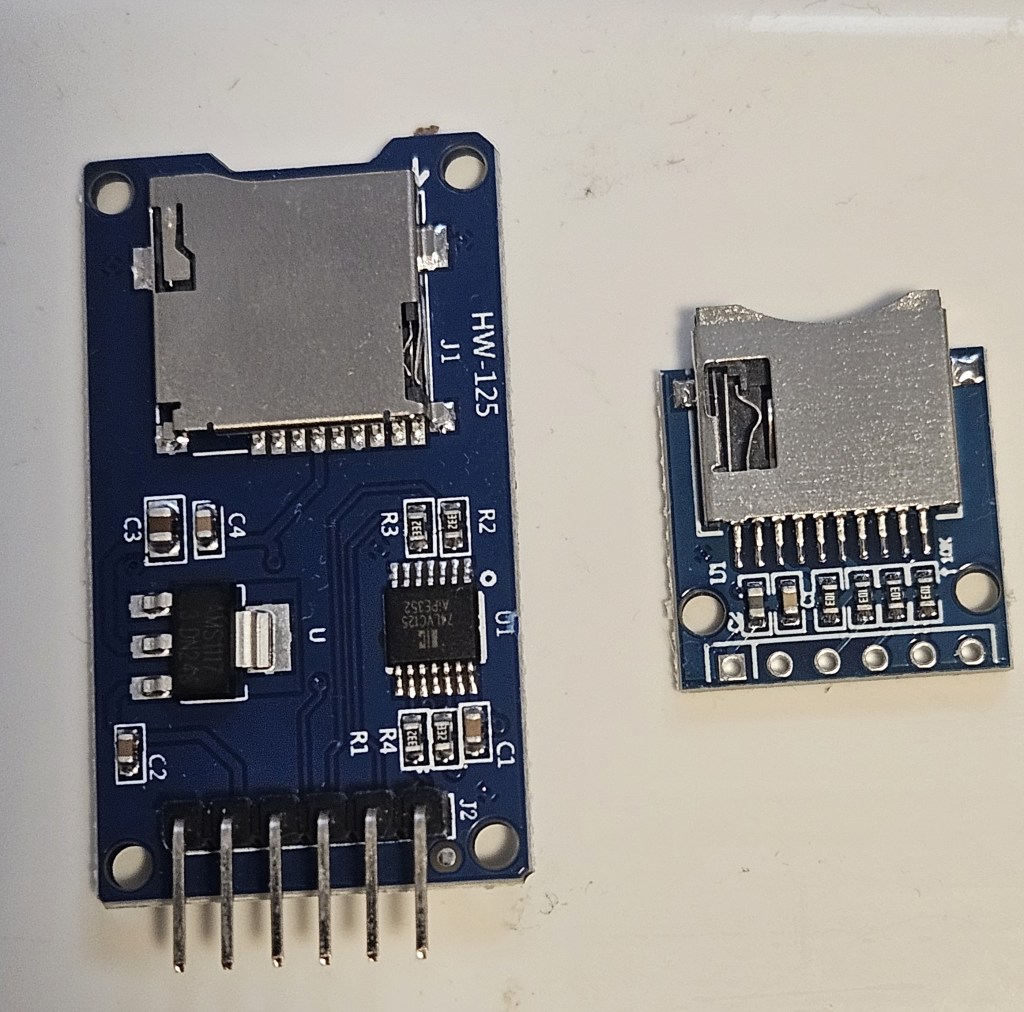
There are 2 basic types of adapters on the market: the WH-125 and the Adafruit. Both use the same micropython driver and have the same pins for connections as an SPI peripheral. They can also be mounted and used in circuitpython using the Adafruit libraries. They are directly interchangeable in software but you have to be extremely careful when making the physical connections otherwise you get “no SD card” or other errors that can be puzzling.

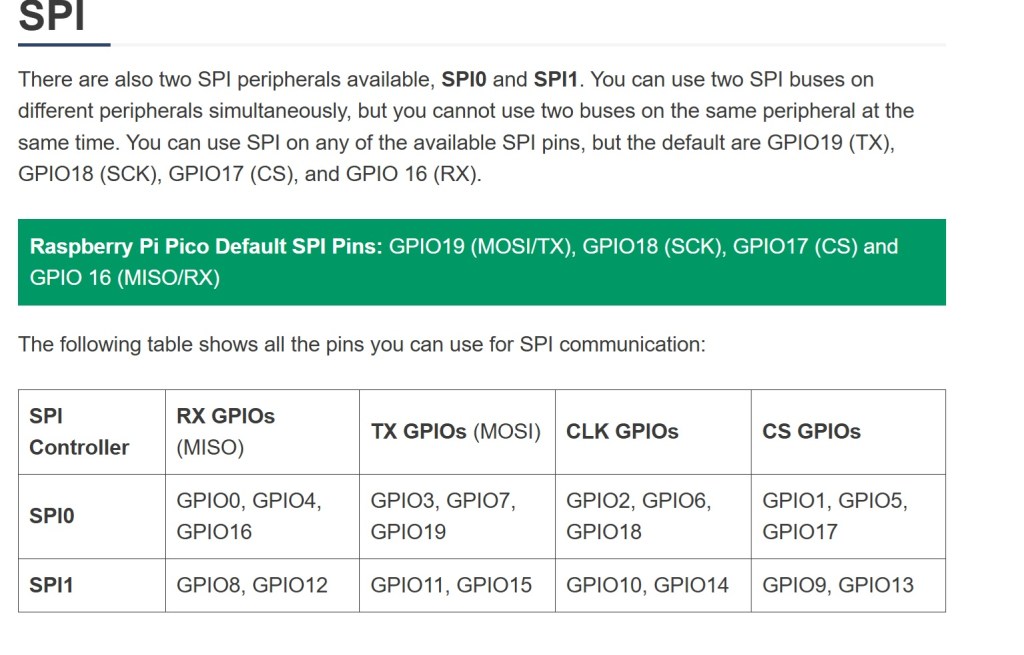
It may be necessary to physically move some of the pin connections when you need to add additional peripherals e.g. external temperature probe. When making changes to pin layout, keep track of which pins are associated with each function on SPI bus you are using. SPI0 and SPI1 pins do not overlap. MISO, MOSI, clock and select are limited to specific GPIO pins in each bus.

A great resource is https://randomnerdtutorials.com/raspberry-pi-pico-w-pinout-gpios/#spi
I had to resort to switching between 2 breadboards connected to Thonny so I could test the adapters separately and efficiently. There are multiple examples of programs for testing and using the microSD card adapter. They work but are not all the same code. There may be an example that is easier to understand and adapt to your specific needs.
The sdcard.py driver is found at https://github.com/micropython/micropython-lib/tree/master/micropython/drivers/storage/sdcard

Example test code:
Circuitpython: https://github.com/printnplay/Pico-CircuityPython/blob/main/SDCartTest.py
Micropython: https://randomnerdtutorials.com/raspberry-pi-pico-microsd-card-micropython/#datalogging
Micropython: https://core-electronics.com.au/guides/makerverse-micro-sd-adapter-micropython-guide/#modules

QGIS prevents Ubuntu version upgrade

Upgrading Ubuntu release from 22.04 to a new version fails with a warning that the Release for qgis does not exist and the upgrade fails.
sudo do-release-upgrade
Checking for a new Ubuntu release
Hit http://security.ubuntu.com/ubuntu jammy-security InRelease
Hit https://dl.google.com/linux/chrome/deb stable InRelease
Ign https://ubuntu.qgis.org/ubuntu-ltr your-distributions-codename InRelease
Err https://ubuntu.qgis.org/ubuntu-ltr your-distributions-codename Release 
404  Not Found [IP: 144.76.174.102 443]
Updating packages lists
E: The repository ‘https://qgis.org/ubuntu-ltr your-distributions-codename Release’ does not have a Release file.
Warning:  apt-get update failed for some reason

Error during update
A problem occurred during the update. This is usually some sort of
network problem, please check your network connection and retry.

Removing qgis does not resolve the problem.
Doing an autoremove to purge unneeded packages does not resolve the problem.
ppa-purge does not resolve the problem.
Clearly there is a sources file somewhere that has not been removed.
The qgis.sources file is not found in the location stated in on-line resources.

Use grep to search for the file.
sudo grep -rnwI ‘/etc/’ -e ‘qgis
Files are found in subdirectories not mentioned in online searches thus far
/etc/mime.types:1534:application/x-qgis 
/etc/default/qgis:1:# Options to pass to qgis
/etc/apt/sources.list.d/qgis.sources:2:URIs: https://qgis.org/ubuntu-ltr
/etc/apt/sources.list.d/qgis.sources:6:Signed-By: /etc/apt/keyrings/qgis-archive-keyring.gpg

Removing the qgis.sources and qgis files allowed an update to the new OS version to proceed.

DS3231 Real Time Clock. How to set the alarm

This is in combination with the Raspberry Pi Pico. Use the chip to keep time while the Pico is in deep sleep or powered off. I need to trigger a thyristor, wake up the Pico, make & store a measurement then power off again.

The timer chip is the core of a number of products from a variety of makers. However, when it comes to setting an alarm, there is remarkably little information for the average user. Here is the function; here are the 8 variables. No meaningful examples or explanation. Fortunately, there are enough software versions that I was able to look at the source code and figure out what settings are needed to get the alarm to work.

This code is from https://RandomNerdTutorials.com/raspberry-pi-pico-ds3231-rtc-micropython/
Alarm times (year, month, day, weekday, hour, minute, second, millisecond)
alarm_time = urtc.datetime_tuple(2025, 04, 09, None, 21, 12, 00, 0)
Sets the alarm time for Apr 9, 2025 at 9:12PM.

However if you want to set the alarm to trigger every second, this is what you need.
alarm_time = urtc.datetime_tuple(None, None, None, None, None, None, None, 0
This outputs an alarm every time the millisecond counter reaches zero. That is every second.
To trigger every minute, set the seconds to 0 and milliseconds to None.

Couple of notes on hardware/software

The Waveshare chip needs to have a jumper installed to get the signal to the output pin. However, the physical layout and tiny size make it very difficult to actually solder anything into place. I haven’t managed to do it yet. Gave up and switched to the DS3231 AT24C32 module.

There are drivers from an assortment of vendors based on the Hinch github repository. They use the same name for driver file but the driver is specific to the board. That can cause a lot of confusion when you run the software and it errors out. I had to put remarks in the header of all files as to source and which chip it runs on.

If you change the driver, unplug the Pico and allow it to clear. Prior drivers can leave settings that cause the new driver to fail.

Wireshark remote capture over SSH

Short video posted on YouTube by The Technology Firm describing it. https://www.youtube.com/watch?v=jYuHS-2g0BM

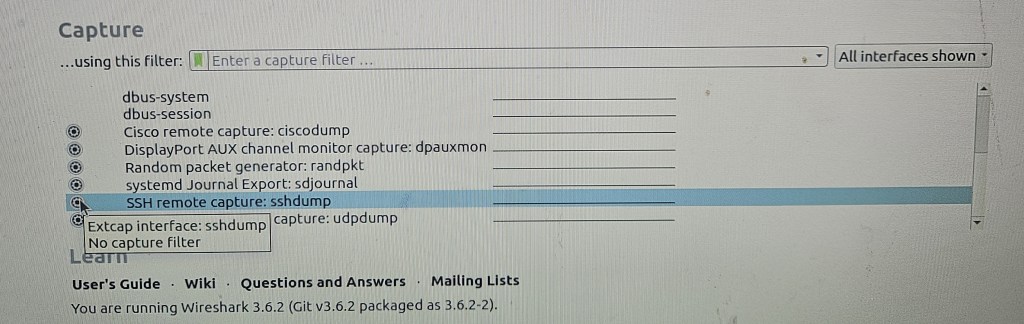
This feature is a GUI for the sshdump tool. It is not installed by default in the Windows version but is in the Linux version. In Windows, when you get to the “Choose Components” page, scroll down under External Capture tools (extcap) and select sshdump.

The function needs tcpdump on the remote end and Ubiquiti routers have it installed by default. Probably many other brands have it as well.

You now have an option for SSH remote capture in the interfaces menu.

Check that you have ssh connectivity to the remote unit and remote in via the console. Use ‘show interfaces’ to list the interfaces and note the name of the one you want to record. Exit. Then proceed with the capture configuration in Wireshark.

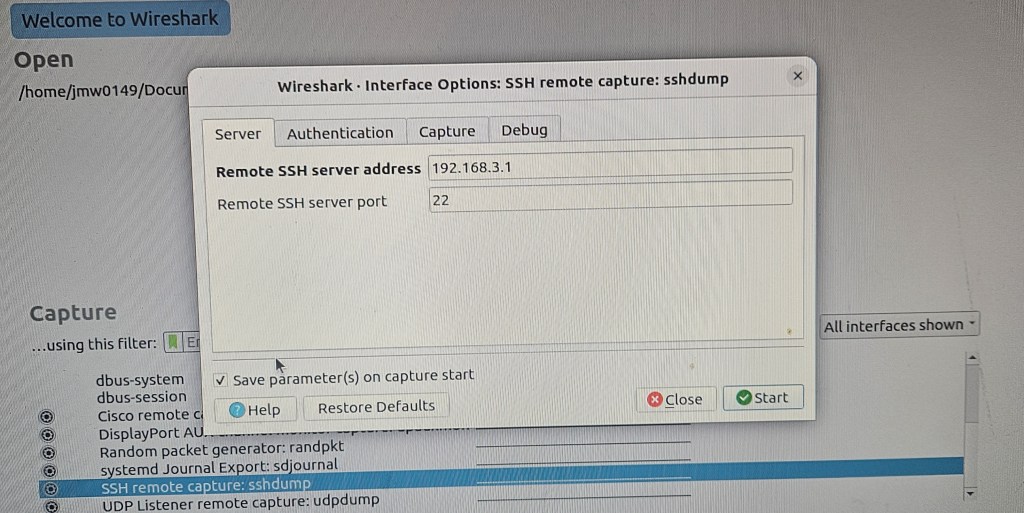
This is the config GUI dialogue for Linux. It’s slightly different in Windows which is in the linked video.

Enter the address and ssh port number

Enter the interface to be recorded on the remote router and be sure to check the sudo option otherwise it fails. No need to modify the capture filter.

Click the start button and with a little delay, the traffic appears in Wireshark.

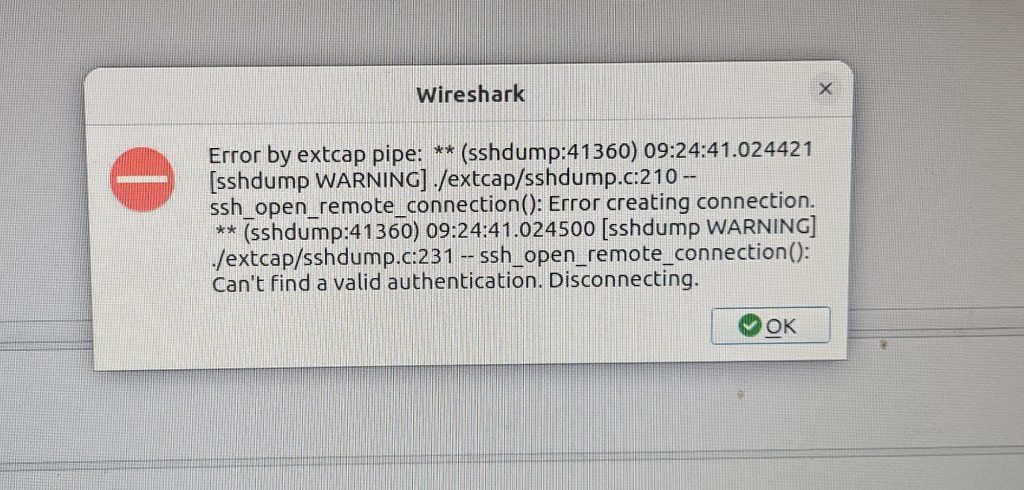
The error messages can be a bit obscure and take some careful reading to figure out what the actual problem is. This one is for a bad password.

Zadig to load/replace USB drivers in Windows OS

Found this utility useful when troubleshooting a USB device that would fail on connection. Used it to find there was an error message associated with the current driver and replace the driver with a Windows compatible driver.

It can be downloaded from https://zadig.akeo.ie/. This is a stand alone executable so no installation but need to approve administrative access to run. The project is in Github. The user manual is at https://github.com/pbatard/libwdi/wiki/Zadig and contains a lot of background information as well.

Pi pico not recognized after updating micropython firmware

Short answer: a bug in the latest version of Micropython for Raspberry Pi pico. Recover by installing an older version.

Update. The latest version of Micropython does not cause this problem. Seems to be limited to this single version.

I bought a batch of Raspberry pi picos in Nov 2021. Been working with 2 of them ever since with no problem. Decided to update the micropython firmware. The units then lost connection to the computer with no COM port available. They will now mount in boot mode and Thonny will download the file to the pico but then fails with a message that a com port cannot be found. Tested with both Windows 11 Thonny, Raspberry Pi Thonny and manual drag/drop. Neither computer can find a pico com port. Tried 2 other unused picos in the same batch and had the same problem from the start. Tried using zadig to install a new USB driver on the units; no success but a new error message: “Device Descriptor Request Failed”

Decided it was probably a bug in the 1.24.0 version of micropython. Found the compiled archives of past versions and installed 1.23.0 by drag and drop. This version installed correctly and had communication with Thonny thru the USB connection. When doing an internet search for compiled past versions, Google will take you to github mostly where you can compile the version you want. The archive you actually want is on the micropython site here.

Allowing Windows client VPN connection to an Edge router thru a router/modem firewall

The provider modem can be a problem if the network you want to connect to is behind another router downstream. Some have the option to set a passthru for VPN but not all. You can configure the modem as a bridge which disables the modem as a network controller. This may work for some cases but needs careful planning if you have an existing network using the default modem governed network.

I’ve found both Verizon and Comcast business modem/routers have a DMZ option which exposes one internal machine to the public network and this works to put the router on the external network interface. However, the T-mobile 5G home connection will not connect in this configuration even though Verizon home Fios and many others work just fine.

The best option I’ve found is to forward ports 500 and 4500 to the internal Edge X router. I found these using Wireshark. I’m sure they are documented somewhere. Port 500 is initially used when connecting to the Edgerouter thru the firewall but shifts to port 4500 after initial contact. Forwarding eliminates the killer conflict between T-Mobil and Comcast modems when using the Comcast option to expose an internal machine.

SSH to domain joined Ubuntu computer

The format to identify a user on the Ubuntu box is not obvious on the first attempt for a domain joined computer with active directory user accounts.

Normally you would use the format ssh user1@192.168.22.15 to connect. This works fine for local accounts not associated with active directory.

However, connecting to an active directory account needs a different format. You need to include the full active directory user name then add the computer address. It ends up looking strange but works. ssh aduser@jmw.blog@192.169.22.15 This connects and resolves to the AD user name on the computer. This works both with Ubuntu and with PuTTY.

Note that the active directory user must already be authenticated on the Ubuntu computer. The SSH protocol will not check authentication of a new user against active directory; it only checks the local status.

Raspberry pi pico: Saving data to local memory

The pico has 2MB of local memory that can be used for data and program storage. One online resource states the maximum file size is 128KB and going over that corrupts the file; however, I have recorded 481KB files successfully. The files are accessible in the Thonny editor and can be copied to the local computer. Developing this for hourly recording of a remote stream to know high it rises after storms. Sleep for an hour, wake up, record a measurement and go back to sleep for another hour. Come back a month later to collect data.

Commands
gage_data = open(“gage_height”,”w”) #create file for writing or “a” for appending. Append will create the file if is not already there
gage_data.write(“height”) #writes data to file buffer. Does not write to memory yet. If it’s not a clean shutdown, the buffer is lost.
gage_data.flush() #writes buffer to memory. Not needed if you close the file.
gage_data.close() #writes buffer to memory and closes file

Insert commas in the write string to create CSV file for spreadsheet import.

Pi camera streaming with picamera2-WebUI

Picamera-WebUI is still in development but very useful for setting up, testing and controlling streaming from a Raspberry Pi. It also can capture photos and had an image gallery to view, delete or download images. Haven’t tried photo capture or the image gallery. Not needed for the project I’m working on.

Simple installation. Update the Pi OS. Clone the repository, change to the app directory then run the app in python. Details on the github page in the Getting Started section.

You may encounter a “Cannot allocate memory” failure on first running. This is a known problem reported on Pi 4B, 3B+ and 2B+. Will be fixed in future releases. The problem appears to be that the video configuration call creates 6 buffers by default and that takes up too much memory. I had to add buffer_count=3 to the create_video_configuration call; that was the maximum for my 3B+. A count of 5 reportedly worked for a 4B. buffer_count does not appear in the source code, you have to add it in 3 places that call create_video_configuration.
video_config = picam2.create_video_configuration(buffer_count=3, main={…………………

Really good for first test of streaming. You can modify camera parameters and save them for the next start. The web image covers a much smaller area than seen with the initial static test; I’m not sure why that is. Someone else can chase it down.