Set the browser to open full screen when the system boots into the GUI. Incognito mode is needed because of the way some web sites change between modes. Failure to go incognito may prompt for a user response.
Update:
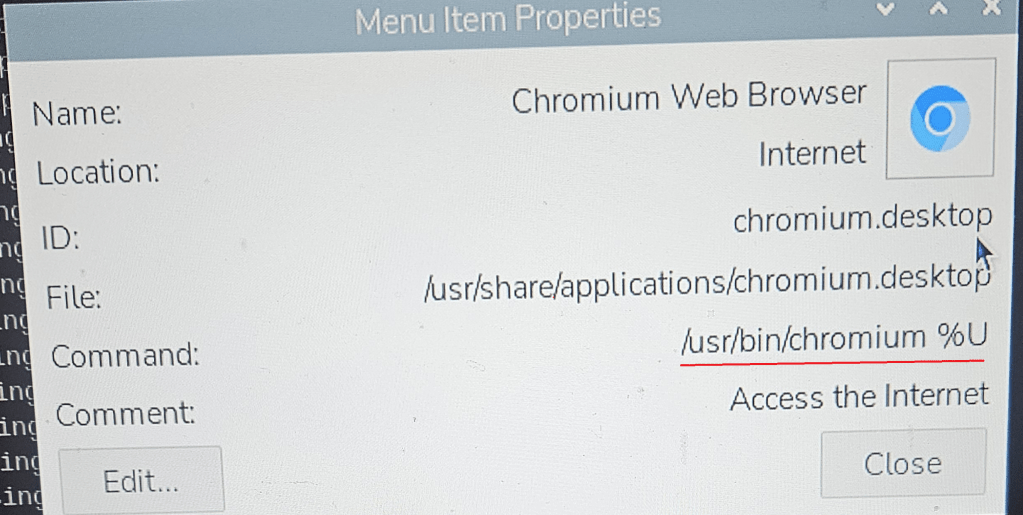
In newer versions of raspberry pi OS, the executable has been renamed to chromium instead of chromium-browser.
Quick check for correct name:
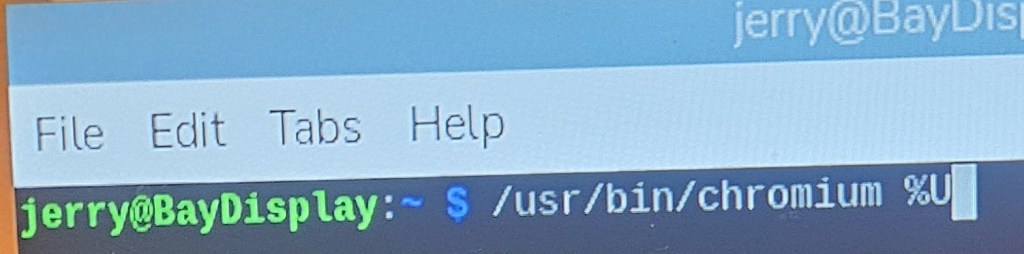
Open the properties tab for the chromium browser start. Locate the start command. Enter it into a terminal session. There will be a delay, then a lot of error messages, then the browser will start. This is also a quick method of checking if the command in the autostart file is correct without having to reboot.
Alternatively you can go to /usr/bin and check the name there.

Use systemd autostart configuration for the browser.
cd ~/.config/autostart
sudo nano browser.desktop
[Desktop Entry]
Type=Application
Name=browser
Exec=/usr/bin/chromium --start-maximized --incognito http://yoursite
Check https://peter.sh/experiments/chromium-command-line-switches/ for correct style if in doubt
There are 2 options to start fullscreen:
–start-fullscreen
and
–start-maximized
Fullscreen and maximized now sometimes decide the screen is a smaller size than the actual display but will correctly resize when the web site refreshes or if you press F11. Currently looking into the issue but no solution as yet.
To display a web page with mixed secure and unsecure content.
add the switch. --allow-running-insecure-content
Note: Advanced settings in chrome allow mixing secure and unsecure content from specific websites. Privacy and Security > Site Settings > Additional content settings > Insecure content > Allow > add
However, this is not applied when starting from a command line in the autostart
You can now disconnect the keyboard and mouse. The unit will boot into a full screen display of the web site and the users cannot modify the settings. You can remote in and change the display easily.


