Short video posted on YouTube by The Technology Firm describing it. https://www.youtube.com/watch?v=jYuHS-2g0BM
This feature is a GUI for the sshdump tool. It is not installed by default in the Windows version but is in the Linux version. In Windows, when you get to the “Choose Components” page, scroll down under External Capture tools (extcap) and select sshdump.
The function needs tcpdump on the remote end and Ubiquiti routers have it installed by default. Probably many other brands have it as well.

You now have an option for SSH remote capture in the interfaces menu.
Check that you have ssh connectivity to the remote unit and remote in via the console. Use ‘show interfaces’ to list the interfaces and note the name of the one you want to record. Exit. Then proceed with the capture configuration in Wireshark.
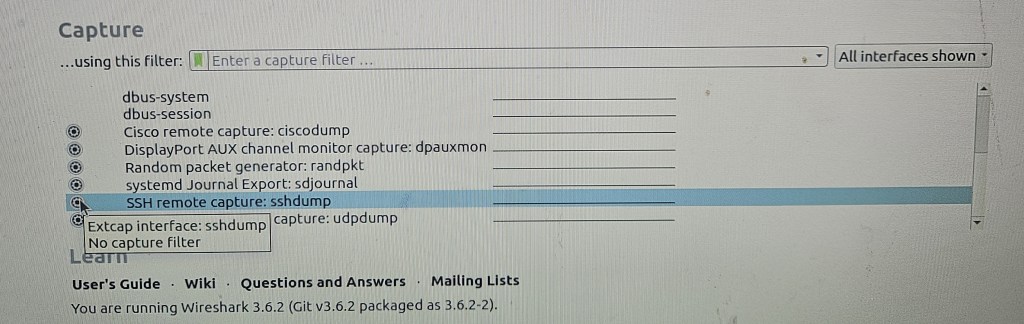
This is the config GUI dialogue for Linux. It’s slightly different in Windows which is in the linked video.
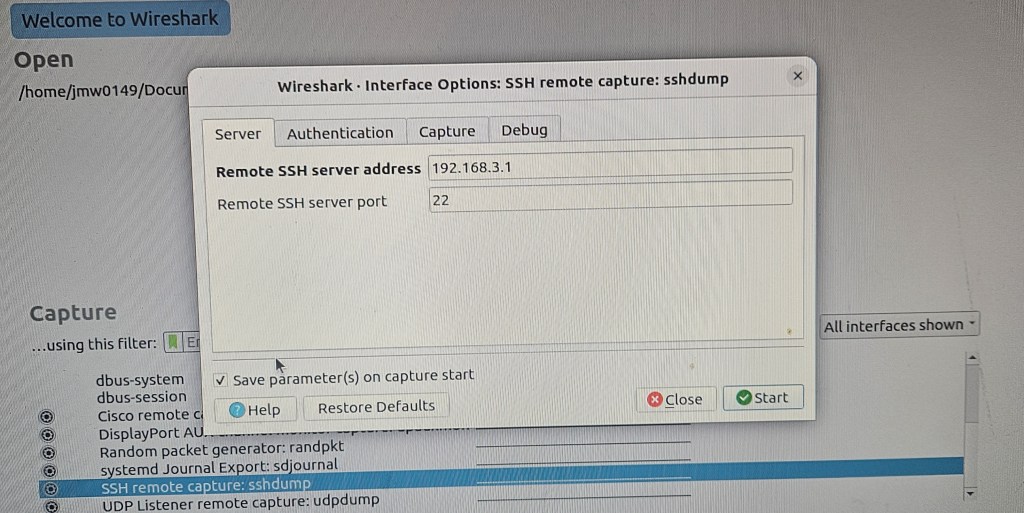
Enter the address and ssh port number

Enter the interface to be recorded on the remote router and be sure to check the sudo option otherwise it fails. No need to modify the capture filter.

Click the start button and with a little delay, the traffic appears in Wireshark.
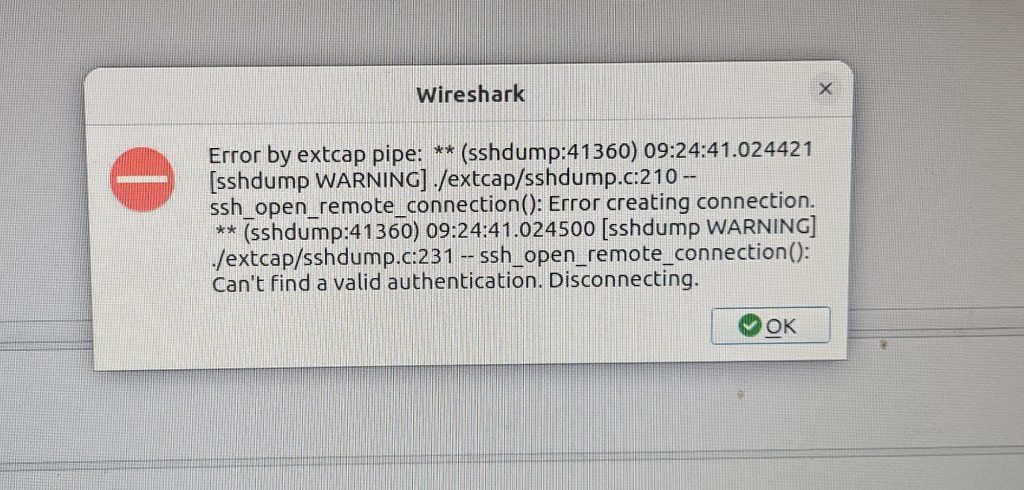
The error messages can be a bit obscure and take some careful reading to figure out what the actual problem is. This one is for a bad password.


 Jerry's blog