Problem setup. Using a built-in FTP client on commercial software to transfer log files to another location. The VSFTPD server was configured on a Raspberry Pi 3 with a 1TB HDD connected by USB. Configuration was tested with FileZilla and everything worked as expected. However, the client was unable to connect despite trying numerous configurations in accordance with the documentation. To make matters more confusing, the client could connect to a Windows native FTP server configured in Windows 10.
Cut to the chase. The client was not well written which resulted in multiple errors in communication, any one of which would cause the communication to fail. The auth.log was not helpful because all of the errors generated the same message. The result was, if you correct the first error, the second error in sequence generated the same error message so you are stuck thinking you haven’t fixed the first error. Wireshark capture of the packet exchange makes clear what’s going on by showing full error messages in context.
The client did not have any encryption or security function whatsoever. It took a few tries before I realized this and configured the server to expect an unencrypted login. However, this did not fix the login problem so I fired up Wireshark to see what was on the wire.
First problem, the client was not passing a correct password to the server. Here it was fortunate that there was no encryption. Turns out that the client did not properly parse the input, choked and spat out random garbage if a $ was included in the password. It may have problems with other special characters but I didn’t check those. I had used a different account with the Windows FTP and no special characters were included. Password indicated in the figure was not what was entered thru the keyboard.

The next problem was the client would only work in passive mode. Not much of a problem but it required the IP address of the client to be included in the /etc/vsftpd.conf file on the server. This was missed in online example configuration files I was using as a guide. It did not have this problem with the Windows FTP server.
pasv_address=192.168.10.230
Final problem. The client ignored the local_root setting in VSFTPD.CONF for the working file directory. It had to be entered on the client side. Windows FTP was OK with the default from the client but VSFTPD was not.
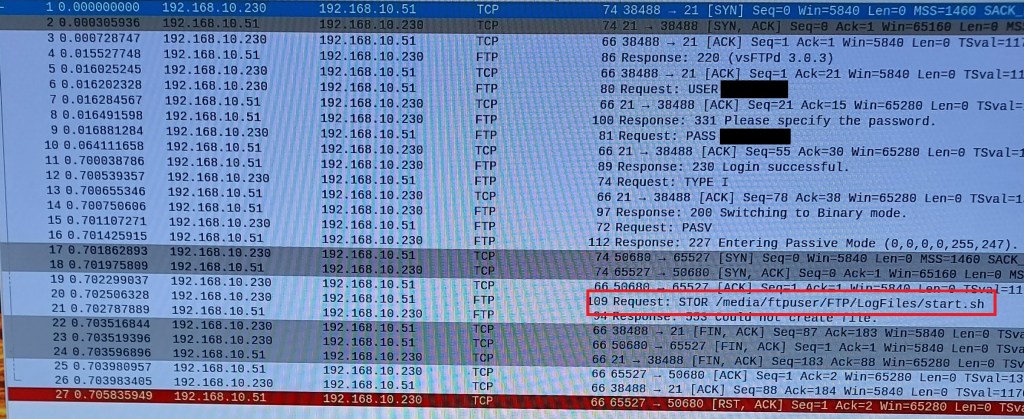
Shown in figure. The password has been accepted and communication switched to passive mode but the STOR command fails because the directory requested is not the directory configured by VSFTPD. The auth.log records the same error message as for the first 2 failures. It is an authorization failure but at a different point in the process.
Summary. Just because a well known and widely used software system has an FTP client module, you cannot assume the FTP client is well written.
 Jerry's blog