Wireshark remote capture over SSH

Short video posted on YouTube by The Technology Firm describing it. https://www.youtube.com/watch?v=jYuHS-2g0BM

This feature is a GUI for the sshdump tool. It is not installed by default in the Windows version but is in the Linux version. In Windows, when you get to the “Choose Components” page, scroll down under External Capture tools (extcap) and select sshdump.

The function needs tcpdump on the remote end and Ubiquiti routers have it installed by default. Probably many other brands have it as well.

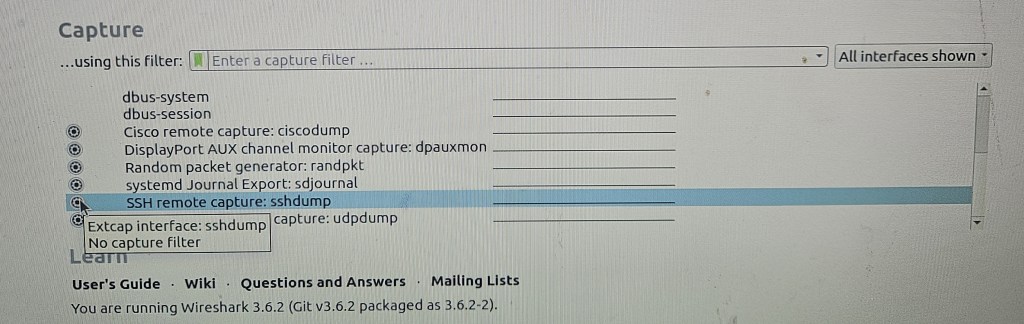
You now have an option for SSH remote capture in the interfaces menu.

Check that you have ssh connectivity to the remote unit and remote in via the console. Use ‘show interfaces’ to list the interfaces and note the name of the one you want to record. Exit. Then proceed with the capture configuration in Wireshark.

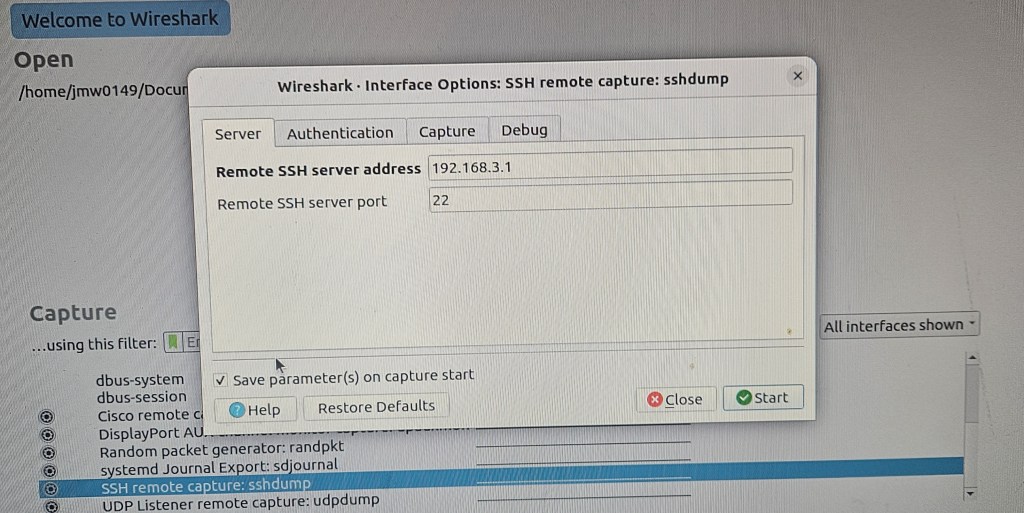
This is the config GUI dialogue for Linux. It’s slightly different in Windows which is in the linked video.

Enter the address and ssh port number

Enter the interface to be recorded on the remote router and be sure to check the sudo option otherwise it fails. No need to modify the capture filter.

Click the start button and with a little delay, the traffic appears in Wireshark.

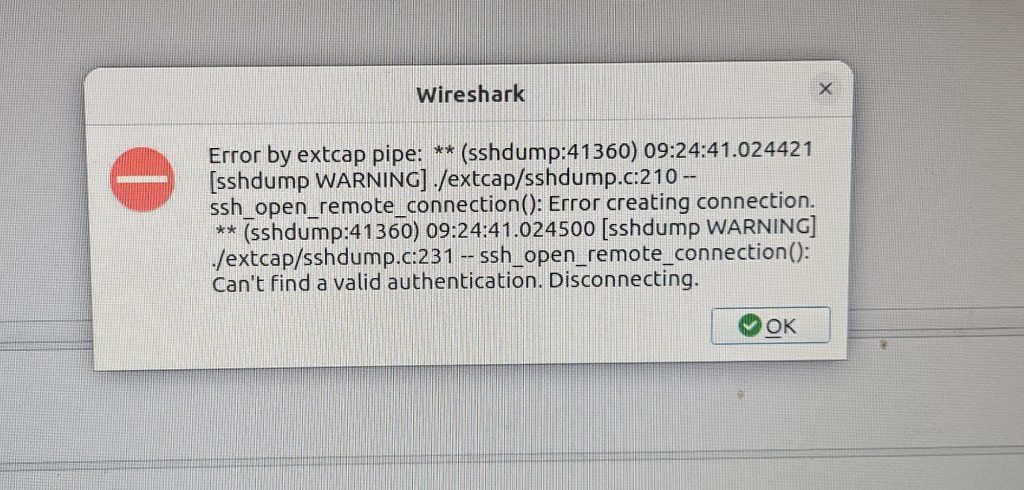
The error messages can be a bit obscure and take some careful reading to figure out what the actual problem is. This one is for a bad password.

Turn off AI in Chrome

Tom’s Hardware has a longer review article on background and multiple options. This focuses on a simple method users can do.

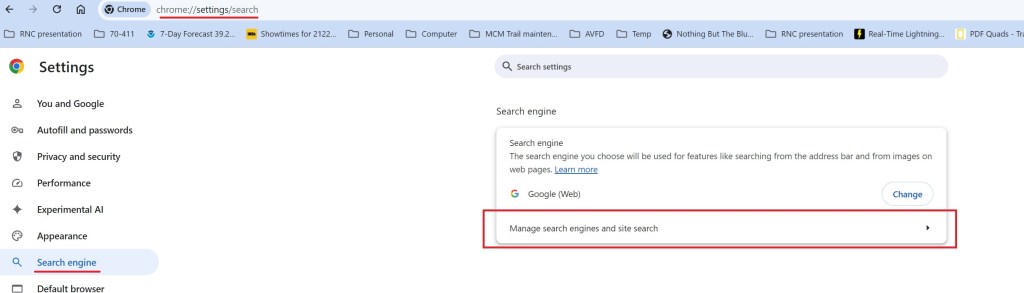
Open Chrome and go to the settings/search page. Select search engine then select Manage search engines.

The screen changes to listing the search engines and site. Add a site to search

I named it Google(Web) to match the tabs on search results. The shortcut needs to be google.com. If you enter it with the www prefix, it will not work. The critical entry is the URL:
{google:baseURL}/search?udm=14&q=%s

This returns web results only, not the added AI or other summary features. Note URL in search bar and the Web tab selection in the return.

However it you want or are expecting summary graphics, just select All and summary is added without AI (so far, that might change).

L2TP VPN suddenly stops connecting to Edgerouter X thru specific access points

Short summary: reboot the router

This one can have you tearing your hair out trying to debug because it appears that the access point is the problem. Testing with a variety of devices and locations reveals a strange pattern of function/non-function.

Specifics: Win 10 laptop, desktop and VM all suddenly start timing out instead of connecting while an Ubuntu VPN continues to work thru a Verizon home router.
First appearance is the Win10 patch has gone bad but reapplying does not fix it.
Take the laptop to another location with a Comcast router and the VPN connects. Tether the desktop to a phone hotspot to bypass the home router and the VPN connects. Now it looks like the router has the problem.

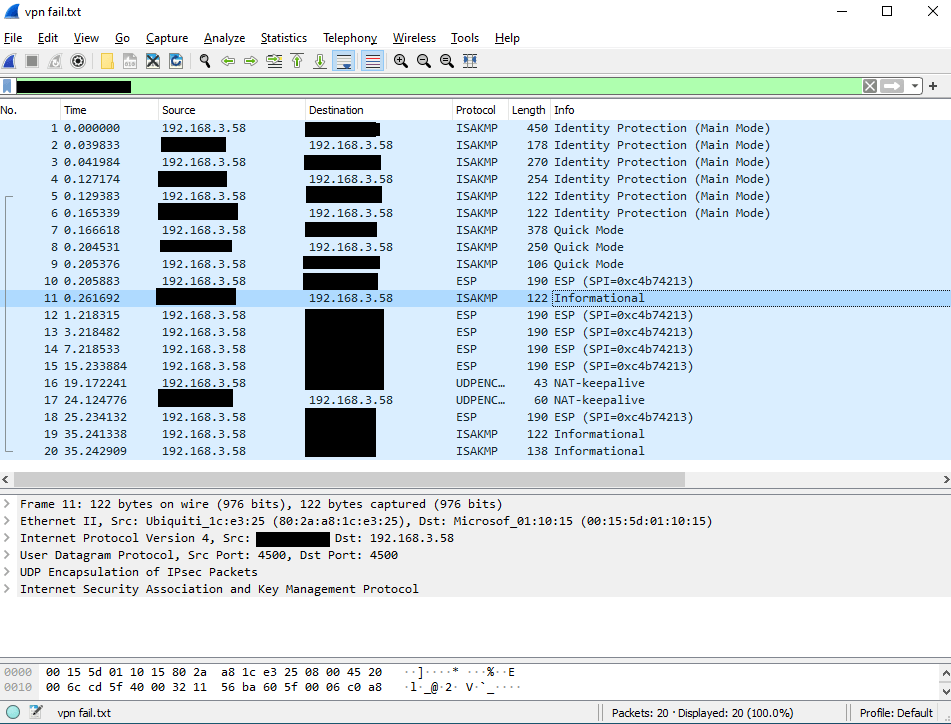
Wireshark monitoring of a failed connection reveals the IKE negotiation works and an encrypted tunnel is setup but the first ESP communication results in an informational ISAKMP protocol return that should not be there. This is the point of failure. There are some further notices that are not acknowledged and the connection times out.

Despite all indications that it is the specific access point causing the problem, it’s actually the EdgeRouter X that’s gone squirrely. Reboot.

Moving the Windows update software distribution folder

On a smaller primary drive, the saved downloaded files from previous updates can take up substantial disk space and interfere with major OS upgrades. Case in point is a recent Windows 10 feature update requiring 20 GB of free disk space with a minimum of 8GB free on the primary drive. In the MinisForum Z83 units we have, the SSD is 30 GB. Obviously the update cannot be installed without an additional drive.

Substantial space can be saved by moving the c:windowssoftwaredistribution folder to another drive. For this example we’ll use D:UpdateDownloadFolder. However, the permissions must also be moved to the new folder otherwise updates will fail. The alternative is to move it to an xFAT32 formatted disk and permissions are irrelevant.

There are 3 ways permissions can be moved: ICACLS, Get-ACL & Set-ACL, or robocopy. For some reason the first 2 do not work on our machines with the Intel Atom processor; they will reset the permissions to default, everyone full control, rather than update. The commands work on other machines with different processors. Also, it’s not a version issue as they fail on both the 1803 and 1903 versions on the Atom processor.

Moving the folder is simple but has a couple of gotchas. The log file may be open in a process and refuse to close even if you stop the windows update service. Simple fix is to disable the Windows Update service in service manager, which appears as WUAUSERV in task manager services list, then reboot.  Remember to enable it when finished.

For robocopy the command is:
robocopy c:\windows\softwaredistribution  d:\UpdateDownloadFolder /MIR /SEC.
If the log file is open, it will create the UpdateDownloadFolder then complain about an open file. You can use CTL-C to halt the copy. At this point, the base folder has the correct ACLs and there is no need to finish the copy process as update will create the subfolders as needed. However, you still have to close the open file in order to finish the redirect.

The get/set is very simple but it just doesn’t work in some instances. Create the new file then the command is:
Get-ACL c:windowssoftwaredistribution | Set-ACL d:UpdateDownloadFolder

ICACLS is a little tricky because of the folder name change.
Commands are:
ICACLS C:windowssoftwaredistribution /save c:moveacls.txt
The folder name has to be changed in the saved ACL file, then it will work. Open the file with text editor and change the file name from softwaredistribution to UpdateDownloadFolder.

ICACLS D: /restore moveacls.txt
Note: restore in the root directory. If you try to restore in the folder it will fail. The program is looking for the matching subdirectory in its header.

To check permissions on the new folder you can use:
ICACLS D:UpdateDownloadFolder | format-list
or
Get-ACL D:UpdateDownloadFolder | format-list

To finish the move, you need to rename the softwaredistribution folder to softwaredistribution.old then create a link to the new target directory. Use mklink which works only in Admin mode CMD prompt, not in Powershell.
The command is:
mklink /j C:\windows\softwaredistribution D:\UpdateDownloadFolder.
To remove the link, just delete it.

Test the change by checking for new updates. If permissions and links are not set correctly it will quickly fail. Once it’s successful, you can safely delete the C:windowssoftwaredistribution.old file.

Windows server 2019 setup quirks

Ran into some issues when upgrading or installing a new 2019 server. Some of the problems are consistent, others may or may not happen.

Network – upgrade.

IPV4 settings are transferred but IPV4 protocol is not enabled on the NIC, only IPV6 is enabled. You have to manually enable IPV4 then it will work.

If it previously had remote desktop access, the firewall will block it. However, the firewall will show access is allowed when looking at permitted apps rather than advanced security. Run admin command line to enable remote desktop thru the firewall.
Enable-NetFirewallRule -DisplayGroup “Remote Desktop”

File and Printer sharing for Microsoft networks is turned off on the NIC. If the machine was a print server or file server, it will not function as such. All other file and print settings are retained in the upgrade so you only need to check the box and function is restored.

In a new install, the GUI activation for a MAK is broken and always returns an invalid key error. Probably the same in upgrade. You have to enter the key from the admin command console or Powershell  using:
slmgr – ipk XXXXX-XXXXX-XXXXX-XXXXX-XXXXX

Hyper-v. The external connected virtual switches are changed to internal connection. I just created a new virtual switch with external connection and replaced the old ones.

Hyper-v. Virtual machines may not boot. Failing after a series of short multiple attempts. The problem is known and the work around is to change the MAC address on the virtual machine. If it’s dynamic, switch to static AND change the MAC address. Just 1 digit is enough. You can change back later.

How to setup a kiosk on a Raspberry Pi ver. 1.2 June 2022

This produces a full screen display of a web site that users cannot modify but Chrome is not in kiosk mode. This makes it easy for admins to remotely modify the display as things change.

These instructions are similar for the Ubuntu 18.0.4 OS. Some steps are easier since they are available from the GUI. A few changes need to be made though. The desktop needs to be changed to lightdm to reduce complexity of setting up a running X11VNC on startup. Automatic login on boot, adding startup programs and stopping the screen saver are available in the GUI. No need to start SSH; it’s already on. The chromium startup line also need the additional switch: --password-store=basic This bypasses an extra chromium login on startup.

When using an existing box, the chromium browser may not work properly for this on older versions of Jessie.
Update the OS and it’ll work as it should.
sudo apt-get update
sudo apt-get dist-upgrade

Install Raspbian OS from web site
Default is to boot into GUI desktop without using a password

Activate SSH connection
SSH has been deactivated by default since 2016

https://raspberrypi.stackexchange.com/questions/33431/connect-to-raspberry-pi-over-ssh-connection-refused-from-putty

set keyboard layout to match your locale.   Default is UK. This can cause problems with passwords having a special character when trying to connect with putty. Get access denied because passwords don’t match as the keyboards are not mapped the same. Found out the hard way.

——————————————————————————————————————————
Permanently disable screen blanking, allow SSH, disable built in  VNC

Now controlled under raspi-config app in terminal mode
or
from GUI select preferences>Raspberry Pi configuration.

Blanking: Select display tab and turn off screen blanking
SSH: Select interfaces tap and activate
VNC: Make sure it is not turned on.

check that SSH is active netstat -lt
SSH port will show in list if it’s active.

——————————————————————————————————————————

Install and configure the x11 VNC.
This shows the active GUI instead of spawning a new one. You can see the changes that will appear on the display screen. This allows you to use ctl + or ctl – to change font size and leave it set when you disconnect.

RealVNC server is installed on the raspberry pi and turned off by default. Do not turn it on. Doing so will result is multiple competing processes and you will be unable to connect.

I used UltraVNC to connect from the windows machine. It does not require a vendor account and email address.

https://www.megaleecher.net/Raspberry_Pi_VNC_Setup

sudo apt install x11vnc

Configure autostart for VNC in:  /home/[user]/.config/autostart/x11vnc.desktop
create the file and directory if it does not exist

File contents:
[Desktop Entry]
Encoding=UTF-8
Type=Application
Name=X11VNCx11
Exec=x11vnc -forever -usepw
StartupNotify=false
Terminal=false
Hidden=false

additional line to prevent errors at startup. Sometimes the browser starts before the network is finished configuring so you get errors in connection. I haven’t seen it in the latest OS version but has happened in the past
X-GNOME-Autostart-Delay=3

Create password for remote session. This is separate from the user login password, but the same password can be used in both.
x11vnc -storepasswd

reboot to start x11vnc

Set the browser to open full screen when the system boots into the GUI. Incognito mode is needed because of the way some web sites change between modes. Failure to go incognito may prompt for a user response.

Use systemd autostart configuration for the browser.
cd ~/.config/autostart
sudo nano browser.desktop
[Desktop Entry]
Type=Application
Name=browser
Exec=/usr/bin/chromium-browser --start-fullscreen --incognito http://yoursite
Note:
some browsers display the double hyphen as a single dash.
Check https://peter.sh/experiments/chromium-command-line-switches/ for correct style if in doubt

To display a web page with mixed secure and unsecure content.
add the switch. --allow-running-insecure-content 

Note: Advanced settings in chrome allow mixing secure and unsecure content from specific websites. Privacy and Security > Site Settings > Additional content settings > Insecure content > Allow > add
However, this is not applied when starting from a command line in the autostart

You can now disconnect the keyboard and mouse. The unit will boot into a full screen display of the web site and the users cannot modify the settings. You can remote in and change the display easily. Patience on startup. The web site may take 30 seconds to appear and fully display. Usually less but it varies by website.

———————————————————————————————————————————Allow remote user to reboot the display
Create user account; I use reset as the user name.
In /etc/sudoers.d create a file with the following line.  File name doesn’t matter; I use reset-display.

reset ALL=NOPASSWD: /sbin/reboot

This allows the named user to run the reboot command without sudo privileges.
To do it remotely from a windows environment, install Putty and use the Plink utility to send the reboot command to the box.

plink reset@192.168.1.100 -pw password sudo reboot

sudo will run without an admin password because of the file created in sudoers.d

Include it in a .bat file with an exit command and you can just double click to reboot the box.

The password is in clear text but it’s not an issue in our environment.

Other resources
https://en.wikipedia.org/wiki/Google_Chrome_version_history

https://peter.sh/experiments/chromium-command-line-switches/

——————————————————————————————————————————————————————————————————————————————————————————————————————————————————————————————-