There are a bunch of settings in Win10/11 that need to be modified to connect to an EdgeRouter X which were covered in individual prior posts. I just had to setup 2 more machines and realized I need to collect them in one post. Here they are without background reference which can be found in earlier posts.
Problem
Just switched from Verizon to T-Mobile 5G internet connection and the VPN fails. Other users have Comcast or Verizon 5G and there is no problem. After a year of trying, T-mobile 5G does not permit user to make changes necessary to get it working.
Create VPN connection
In VPN properties, select Security tab. Under Allow These protocols, check CHAP and MS-CHAP v2
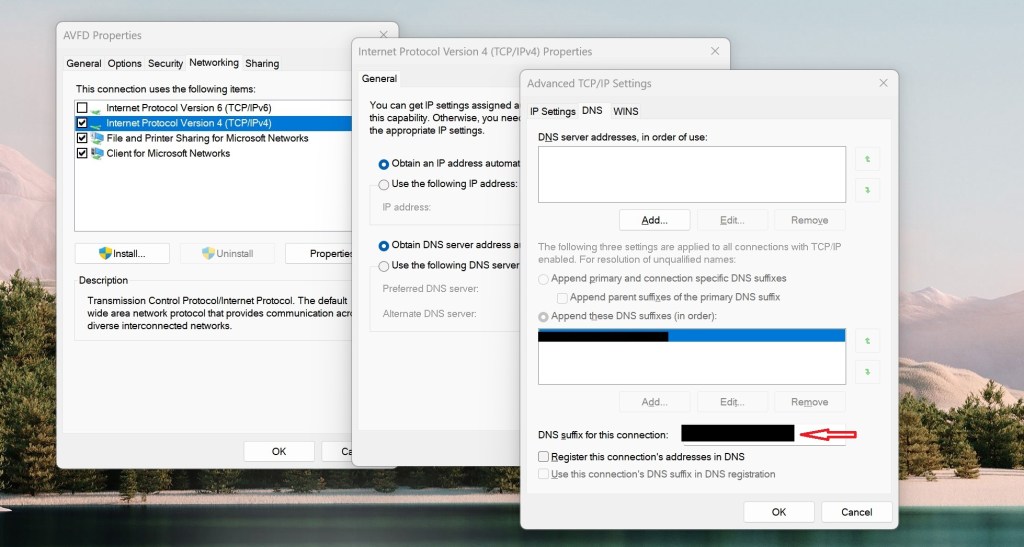
Also important, in the VPN properties, enter the domain suffix to use. If you don’t, the VPN will connect but get all sorts of errors. The telling one is if you try to browse a remote file, you get an error message stating you are not allowed to login from this location. Also, remote desktop connects to target but then quits instead of logging in.
Turn off UDP for client
From command line as administrator or PowerShell as administrator run the following
REG ADD “HKLM\software\policies\microsoft\windows nt\Terminal Services\Client” /v fClientDisableUDP /d 1 /t REG_DWORD
Registry edit for Windows firewall
REG ADD HKLM\SYSTEM\CurrentControlSet\Services\PolicyAgent /v AssumeUDPEncapsulationContextOnSendRule /t REG_DWORD /d 0x2 /f
Add FQDN for remote DNS lookup
Search for and open Control Panel > Network and Sharing Center >Change Adapter Settings > select Ethernet connection (not VPN) & right click > select properties > select IPV4 > select properties > select advanced button > select DNS tab > select button ‘Append these DNS suffixes’ > select Add > enter the correct suffix for the remote domain.
Remote Gateway
In the VPN network connection, under properties select the Networking tab, select IPv4 properties. General tab appears, select advanced, on IP settings make sure Use Default Gateway on Remote Network is checked. If unchecked it can cause DNS lookup problems to the remote computers depending on priority settings of the VPN vs. Ethernet connections. If you can find them by IP address but not name with this unchecked, priority settings are the issue. Split tunneling is the same as unchecking this box.
Set split tunneling
Get-VPNConnection
Look for SplitTunneling status: false by default
Set-VPNConnection -Name “VPNname” -SplitTunneling $True
Quotes around VPN name are required
If split tunneling is true, the remote gateway is not set. This causes problems with finding the remote computers. You can find them by IP address but not name. The fix for this while keeping split tunneling is to reduce the priority number for the VPN and increase it for the Ethernet connection. This forces name resolution to use the VPN DNS first then the external DNS if it can’t find the name locally. It works for browsing external web sites but seems to have occasional difficulty with ads on some pages slowing the response or failing to finish loading.
 Jerry's blog